
Export Stems in Pro Tools for Collaboration
Stop sending drifting audio files. Here is the definitive guide to using Consolidate and Track Commit to create perfectly aligned stems for SyncMuse.
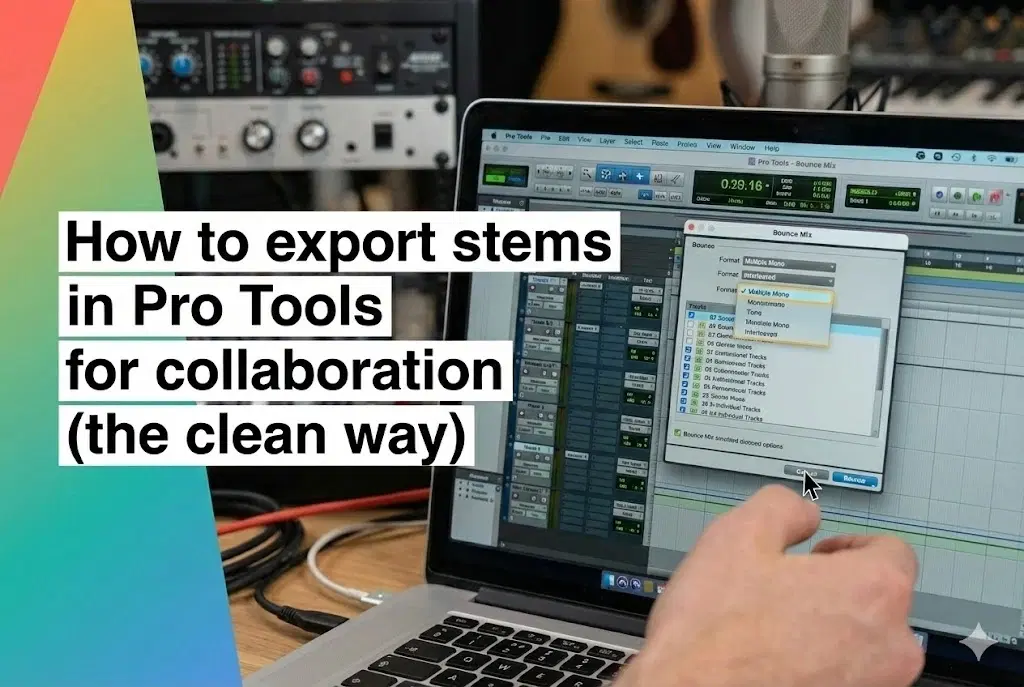
Shot from the SyncMuse community
Nothing kills a remote session faster than dragging a file into your DAW and seeing it drift out of time.
If your collaborator has to manually nudge every vocal track to find the pocket because you didn't export from zero, you didn't send them stems. You sent them a punishment.
Pro Tools is the industry standard, but it is famously strict. It doesn't have a simple "Export All Tracks" button like Ableton or Logic. You have to choose between Consolidating (raw audio) and Committing (processed audio).
Choose the wrong one, and your mixer loses the ability to edit, or your collaborator loses the sound design you spent hours crafting.
Here is the definitive guide to exporting "bulletproof" stems (technically "track-outs") that line up at Bar 1, Beat 1, every single time.
First: Are you sending "Stems" or "Track-outs"?
Before you touch a menu, know what you are delivering. The industry uses these terms loosely, but the distinction matters here:
- Track-outs (Multitracks): One file per track (Kick In, Snare Top, Bass DI, Lead Vox).
- Best for: Sending to a Mixing Engineer who wants total control.
- Stems: Grouped submixes (All Drums, All Music, All Vocals).
- Best for: Remixers, live playback, or final delivery.
This guide focuses on Track-outs, as that is the most common (and most difficult) collaboration scenario.
The Golden Rule: Bar 1, Beat 1
Every single file you export must start at 00:00:00 (or Bar 1 | Beat 1). Even if the guitar solo doesn't start until minute three, the file must contain three minutes of silence at the start.
Without this, your collaborator is guessing where the audio goes. Don't make them guess.
Method A: The "Mixing Engineer" Export (Clean/Dry)
Use this when: You are sending tracks to a mixer who wants to apply their own EQ and compression.
This method uses Consolidate. It renders your edits and crossfades into a single file, but it does not print your plugins or volume automation.
1. Select Everything
Using the Selector Tool, highlight from Bar 1 | Beat 1 to the very end of your song (include the reverb tail).
- Tip: Click the first track name, hold
Shift, click the last track name to select all tracks.
2. Consolidate Selection
Press Shift + Option + 3 (Mac) or Shift + Alt + 3 (Windows).
- Result: Pro Tools renders a new, continuous audio clip for every track. Any silence becomes "digital black."
3. Export Clips
With those new clips still selected:
- Press Shift + Cmd + K (Mac) or Shift + Ctrl + K (Windows) to open the "Export Clips as Files" dialog.
- Use these settings:
- File Type:
WAV(or BWF) - Format: Interleaved (usually safe) or Multiple Mono (if specifically requested).
- Bit Depth:
24 Bit(Standard) or32 Bit Float. - Sample Rate: Match your session (e.g.,
48 kHz). - Destination: A new folder named
SongName_Dry_BPM.
- File Type:
Warning: Consolidating does NOT render plugins. If you have a specific filter sweep or distortion effect that is essential to the song, use Method B for that track.
Method B: The "Producer" Export (Processed/Wet)
Use this when: Sound design is part of the composition (e.g., a heavily distorted bass, a vocal with essential delay).
This method uses Track Commit. It "prints" your plugins into the audio file.
⚠️ CRITICAL WARNING FOR ELASTIC AUDIO USERS: If you used Elastic Audio (warping) to fix timing, you MUST use this method. If you just "Consolidate" a warped clip, Pro Tools may revert it to the un-warped original timing. Always Commit Elastic Audio.
1. Prepare the Tracks
Right-click the name of the track(s) you want to render.
2. Select "Commit..."
Choose Commit... from the menu.
3. The Commit Settings
A dialog will appear. Ensure:
- Consolidate Clips: ON.
- Volume and Mute: Unchecked (usually better to let the mixer handle volume) OR Checked (if the volume rides are part of the vibe).
- Send and Group Automation: Copy (so the new track keeps the routing).
- Insert after last selected track: ON.
Click OK. Pro Tools will print the audio to a new track like magic. Once done, you can use the Export Clips command (Method A, Step 3) on these new "committed" tracks.
Method C: The Hybrid (The Pro Move)
The best collaboration folders are usually a mix:
- Kick, Snare, Vocals: Exported via Method A (Dry) so the engineer can mix them.
- Synths, FX, Electric Guitars: Exported via Method B (Wet) so the tone is preserved.
Quality Control (The 30-Second Check)
Before you upload, do the "Idiot Check":
- Open a brand new Pro Tools session (or any DAW).
- Drag your exported WAV files onto the timeline at Bar 1.
- Hit play.
Do the drums hit at the right time? Is the guitar tone there? If yes, you're clear for takeoff.
The better way to share (SyncMuse)
You now have a folder of perfectly aligned, high-quality WAV files.
You could dump them into a generic cloud folder, where they will inevitably get confused with "Song_v3_FINAL_Real.ptx".
Or, you could drag that folder straight into SyncMuse.
SyncMuse is built for this exact moment. It allows your collaborator to:
- Preview the track-outs instantly in the browser (no download required).
- Comment on specific timestamps: "This delay throw at 1:45 is clashing with the vocal."
- Manage Versions: Keep the "Dry" exports separate from the "Wet" exports without creating folder chaos.
Try SyncMuse for free. Your collaborators (and your future self) will thank you.
Using a different DAW? Check out our stem export guides for Logic Pro, Ableton Live, and FL Studio. For general file management tips, see how to share music stems without losing your mind.
Related articles
Jan 7, 2026
Export Stems in FL Studio for Collaboration
Stop sending 4-bar loops. Use "Split Mixer Tracks" in FL Studio to export perfectly aligned WAV stems for remote collaboration in SyncMuse.
Read moreJan 5, 2026
Export Stems in Ableton Live for Collaboration
Stop sending messy project files. Here is the definitive guide to using "All Individual Tracks" in Ableton Live to create perfectly aligned stems for SyncMuse.
Read moreDec 22, 2025
Export Stems in Logic Pro for Collaboration
Stop sending broken stems. Here is the step-by-step guide to exporting "All Tracks as Audio Files" in Logic Pro with the correct settings for collaboration.
Read more