
Export Stems in Ableton Live for Collaboration
Stop sending messy project files. Here is the definitive guide to using "All Individual Tracks" in Ableton Live to create perfectly aligned stems for SyncMuse.
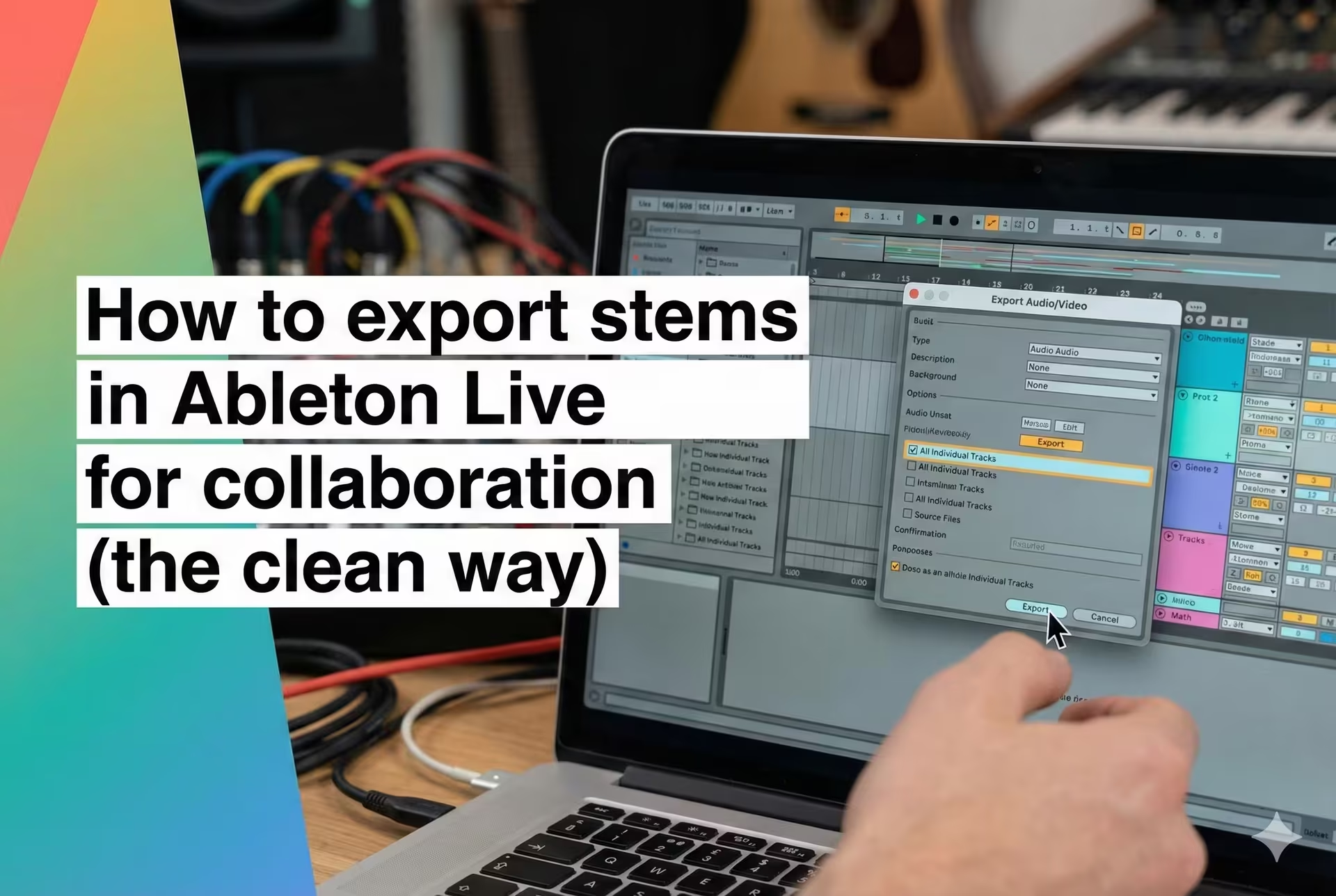
Shot from the SyncMuse community
You've built the loop. The arrangement is locked. Now comes the part every Ableton producer dreads: getting your masterpiece out of Live and into a format your mix engineer or drummer can actually use.
We've all been there. You send a project file, and they reply: "I don't have FabFilter Pro-Q 3, so I can't hear the kick," or "Why is the bass track 4 bars long but the drums are 64 bars?"
Ableton Live is powerful, but its export menu has a few traps. Choose the wrong setting, and your collaborator spends 3 hours just trying to line up your audio.
Here is the definitive, step-by-step workflow to exporting stems (technically "multitracks") for collaboration in SyncMuse.
The difference: "All Individual Tracks" vs. "Selected Tracks"
First, let's clear up the confusion in Ableton's Export Audio/Video dialog.
- Master: This creates one stereo file of your whole song. Great for listening, useless for mixing.
- Selected Tracks Only: Useful if you just want to export a specific group (like "Drums"), but prone to user error if you forget to select something.
- All Individual Tracks: This automatically prints every single track as its own separate WAV file. This is usually what you want for collaboration.
Step 1: Prep your Set (don't skip this)
A clean session equals a happy collaborator.
- Switch to Arrangement View: Session View is great for jamming, but for exporting stems, you need a linear timeline. Hit
Tab. - Commit Heavy Processing (Optional): If you have a track with a CPU-hungry plugin (like a massive granular synth), Right-Click the track and choose Freeze Track, then Flatten. This bakes the sound into audio so it exports instantly.
- Rename Tracks: Ableton names files based on the track name.
3-Audiois useless. Rename itLd_Vocal_Verse. - Select the Time Range: In the Arrangement View, select the time span from 1.1.1 to the very end of your song (including the reverb tail). Critical: Even if a synth doesn't start until bar 32, you must select from bar 1. This ensures every stem starts at exactly 0:00, so they line up perfectly in your collaborator's DAW.
Step 2: The Export Command
- With your time range selected, go to File > Export Audio/Video (Shift + Cmd/Ctrl + R).
Step 3: The settings (where mistakes happen)
A dialogue box will pop up. Copy these settings to avoid the common pitfalls:
- Rendered Track: Select "All Individual Tracks" (to separate everything) or "Selected Tracks Only" (if you specifically highlighted Groups/Busses).
- Render Start / Render Length: Double-check this matches your full song selection (e.g., Start 1.1.1).
- Include Return and Master Effects:
- For a Mixer: Usually OFF. They want dry tracks to add their own space.
- For a Co-Producer: You can turn this ON to keep your specific vibe, but be warned: it bakes the reverb into the file, so it can't be undone.
- Render as Loop: OFF.
- Convert to Mono: OFF. (Let the mix engineer decide what should be mono).
- Normalize: OFF. Never set this to "On." It will ruin your gain staging.
- Create Analysis File: OFF. (Unless your collaborator is also using Ableton).
- Sample Rate: Match your project (usually
44100or48000). - Encode PCM: ON.
- File Type:
WAV. - Bit Depth:
24or32. (32-bit is safer for avoiding digital clipping, but 24-bit is standard). - Dither Options: No Dither. (Leave this for the mastering engineer).
Step 4: Organization
- Click Export.
- Create a new folder named
ProjectName_BPM_Key(e.g.,MidnightRun_124bpm_Fmin). - Click Save. Ableton will now render every track one by one. Grab a coffee.
Step 5: The "Quality Control" Check
Don't just upload them yet.
- Open a brand new Ableton Live Set.
- Drag all your newly exported WAV files into the Arrangement View at 1.1.1.
- Hit play.
- Does it sound exactly like your song?
If yes, you are ready to share.
The better way to share
Now you have a folder of 20+ perfect WAV files.
You could zip them up, wait for a WeTransfer upload, email the link, and hope your collaborator downloads it before it expires. Or, you can risk the "Conflicted Copy" nightmare of a shared Dropbox folder.
Or, you could drag that folder straight into SyncMuse.
With SyncMuse, your collaborator can:
- Preview the stems instantly in the browser without downloading 10GB of data.
- Comment "This snare is too loud" right on the waveform at bar 16.
- Upload their new layers into the same project history, keeping everything organized.
- Avoid "Version Hell" forever.
Try SyncMuse for free and make your next collaboration actually feel like collaboration.
Using a different DAW? Check out our stem export guides for Logic Pro, FL Studio, and Pro Tools. For general file management tips, see how to share music stems without losing your mind.
Related articles
Jan 9, 2026
Export Stems in Pro Tools for Collaboration
Stop sending drifting audio files. Here is the definitive guide to using Consolidate and Track Commit to create perfectly aligned stems for SyncMuse.
Read moreJan 7, 2026
Export Stems in FL Studio for Collaboration
Stop sending 4-bar loops. Use "Split Mixer Tracks" in FL Studio to export perfectly aligned WAV stems for remote collaboration in SyncMuse.
Read moreDec 22, 2025
Export Stems in Logic Pro for Collaboration
Stop sending broken stems. Here is the step-by-step guide to exporting "All Tracks as Audio Files" in Logic Pro with the correct settings for collaboration.
Read more