
Export Stems in Logic Pro for Collaboration
Stop sending broken stems. Here is the step-by-step guide to exporting "All Tracks as Audio Files" in Logic Pro with the correct settings for collaboration.
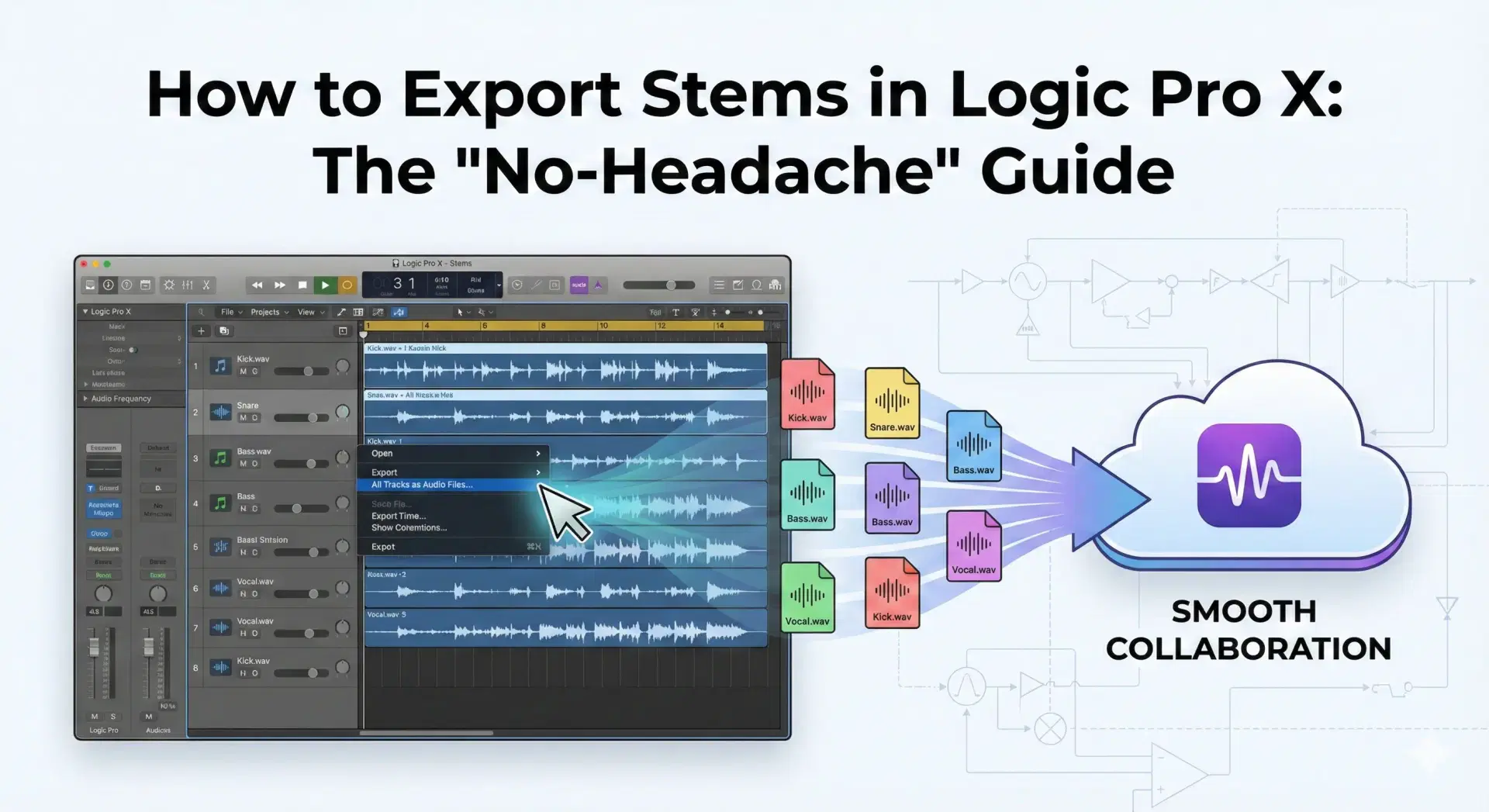
Shot from the SyncMuse community
You've finished the production. The arrangement is fire. Now comes the part every Logic producer dreads: getting the files out of Logic and into your collaborator's hands without messing up the levels.
If you've ever sent stems to a mix engineer and they replied, “Hey, the kick drum has no processing on it,” or “Why are these files all different lengths?”, this guide is for you.
Logic makes it confusing. You have "Bounce," "Export," and "Share." Choose the wrong one, and you lose your plugins, automation, or sanity.
Here is the definitive, step-by-step workflow to exporting stems (technically "multitracks") for collaboration in SyncMuse.
The difference: Bounce vs. Export
First, let's clear up the confusion.
- Bounce (Cmd+B): This is for making one stereo file of your whole song (for listening).
- Export All Tracks: This prints every single track as its own separate WAV file. This is what you want for collaboration.
Step 1: Prep your session (don't skip this)
Before you export, you need to clean house.
- Save as a New Version: Go to
File > Save Asand name itSongName_Stems_Export. If you mess up, your original session is safe. - Delete Empty Tracks: Remove any muted or empty MIDI tracks.
- Rename Tracks: Logic will name the files based on the track name.
Audio 14is useless to your mixer. Rename itLd_Vocal_Chorus. - Set the Cycle Range: Set the yellow cycle bar (loop brace) from Bar 1 to the very end of the reverb tail. This ensures every stem starts at exactly the same time (0:00), so they line up perfectly in your collaborator's DAW.
Step 2: The export command
- Add aux channels to timeline (Critical!): Logic does not export your FX Returns (Reverbs/Delays) by default. Open the Mixer (
X), select your Aux/Bus strips, Right-Click, and choose "Create Track". This puts them in the main window so they get exported. - Select all tracks in the main window (
Cmd + A). - Go to File > Export > All Tracks as Audio Files.
Note: Do NOT choose "Export Selection". This will create files exactly the length of the region, so they won't line up.
Step 3: The secret settings (the important part)
A dialogue box will pop up. This is where most people get it wrong. Copy these settings:
- Range: Select "Export Cycle Range Only" (Ensures alignment).
- Format:
WAVE - Include Audio Tail: CHECKED. (This automatically captures the reverb tail at the end of the file so it doesn't cut off abruptly).
- Bit Depth:
24 Bit(Standard for mixing) or32 Bit Float(If you are worried about clipping). - Bypass Effect Plugins: UNCHECKED. (Keep this unchecked if you want your EQ/Compression to be baked in. Check it only if the mixer wants "raw" dry tracks).
- Include Volume/Pan Automation:
- For a Mixer: Usually UNCHECK this. They want to set their own volume balance.
- For a Co-Producer: You can CHECK this to keep your vibe.
- Normalize: OFF. Never set this to "On." It will turn your quiet shaker track up to maximum volume and ruin your mix balance.
Step 4: Organization
- Click "New Folder" and name it using a standard convention like
ProjectName_BPM_Key(e.g.,NeonNights_128bpm_Cm). - For Pattern, choose:
Track Number-Track Name.- Result:
01-Kick.wav,02-Snare.wav. This keeps them in order for your collaborator.
- Result:
- Hit Export.
(Check out our guide on file naming conventions for more tips on organizing your folder).
Step 5: The "quality control" check
Don't just upload them yet.
- Open a brand new Logic session.
- Drag all your newly exported WAV files in.
- Hit play.
- Does it sound exactly like your song?
If yes, you are ready to share.
The better way to share
Now you have a folder of 40 perfect WAV files. You could zip them up, wait for a WeTransfer upload, email the link, and hope your collaborator downloads it before it expires.
Or, you could drag that folder straight into SyncMuse.
With SyncMuse, your collaborator can:
- Preview the stems instantly in the browser without downloading.
- Comment "This kick is too distorted" right on the waveform.
- Upload their new layers into the same project history, keeping everything organized.
Try SyncMuse for free and stop worrying about "missing files" forever.
Using a different DAW? Check out our stem export guides for Ableton Live, FL Studio, and Pro Tools.
Related articles
Jan 9, 2026
Export Stems in Pro Tools for Collaboration
Stop sending drifting audio files. Here is the definitive guide to using Consolidate and Track Commit to create perfectly aligned stems for SyncMuse.
Read moreJan 7, 2026
Export Stems in FL Studio for Collaboration
Stop sending 4-bar loops. Use "Split Mixer Tracks" in FL Studio to export perfectly aligned WAV stems for remote collaboration in SyncMuse.
Read moreJan 5, 2026
Export Stems in Ableton Live for Collaboration
Stop sending messy project files. Here is the definitive guide to using "All Individual Tracks" in Ableton Live to create perfectly aligned stems for SyncMuse.
Read more