
Export Stems in FL Studio for Collaboration
Stop sending 4-bar loops. Use "Split Mixer Tracks" in FL Studio to export perfectly aligned WAV stems for remote collaboration in SyncMuse.
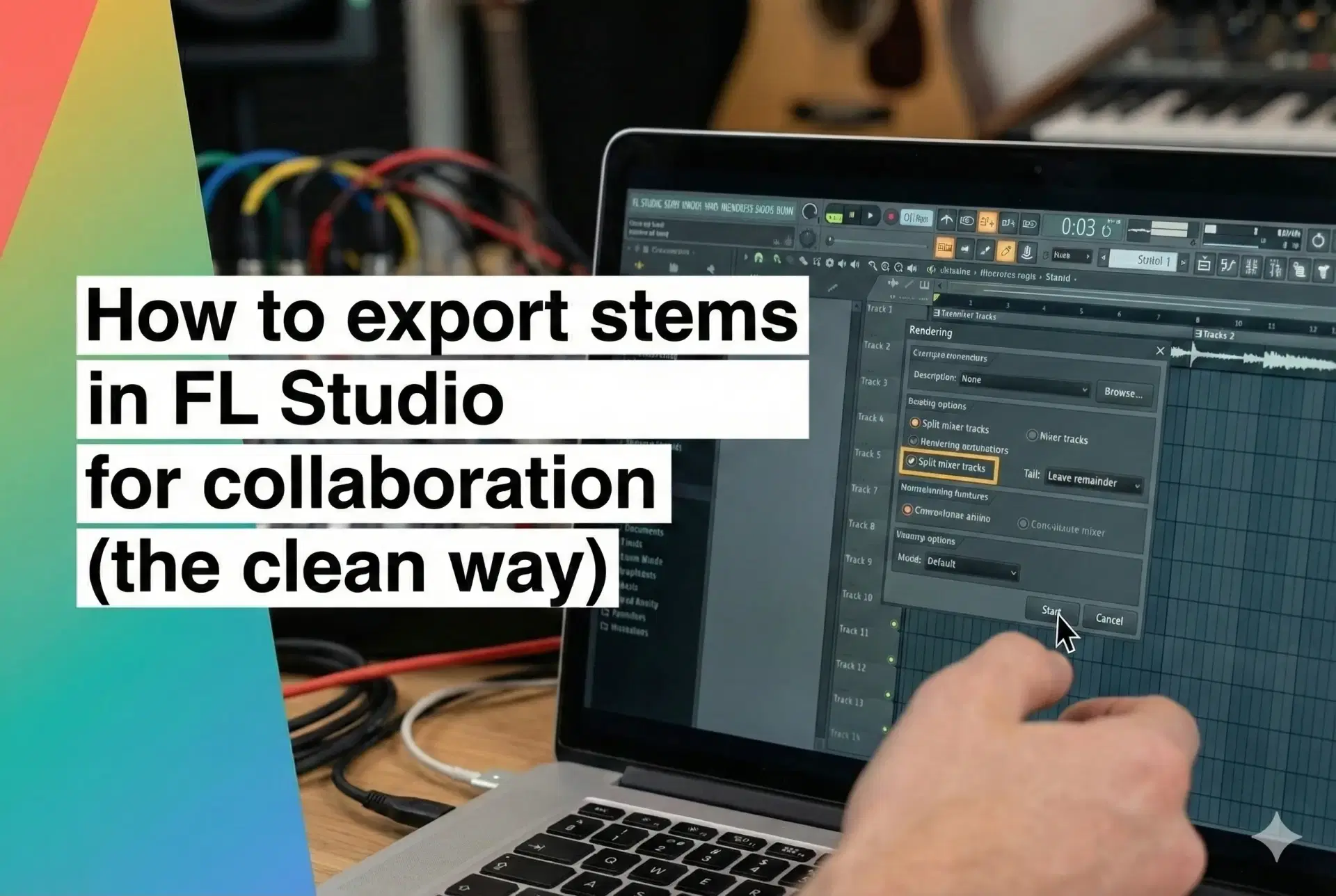
Shot from the SyncMuse community
You’ve cooked up the beat. The 808s are hitting, and the arrangement is fire.
Now you need to send it to a vocalist or a mix engineer without sending them a single MP3 blob (a.k.a. “audio soup”).
FL Studio is different from most DAWs: the Playlist lanes are not automatically “tracks.” The Mixer is where separation becomes real.
This guide shows the one workflow that reliably produces clean stems for collaboration: Split Mixer Tracks.
The Golden Rule: If it’s not routed, it’s not a stem
In FL Studio, you don’t get “one stem per Playlist lane” by default.
You get “one stem per Mixer Insert”… if you routed things correctly.
If your kick, snare, and bass all share the same Mixer Insert, you’ll export exactly one file: Insert 5.wav — and your collaborator will send you an email that starts with “hey so…”.
Step 1: Prep your project (routing that won’t embarrass you)
1. Switch to SONG mode (not PAT)
Make sure you’re exporting the arrangement, not just the current loop.
2. Route each sound to its own Mixer Insert
Fastest clean routing (multiple channels → multiple inserts):
- In the Channel Rack, select the channels you want to export (your active instruments/audio).
- Open the Mixer (F9).
- Click the first empty Insert where you want stems to start.
- Press Ctrl + Shift + L (Cmd + Shift + L on Mac).
Result: This automatically names, colors, and spreads your selected channels across consecutive Mixer tracks.
(Note: Do not press just Ctrl + L — that routes everything to ONE track).
3. Rename your Mixer inserts (future-you will thank you)
Your collaborator sees Mixer track names, not Plugin names. Rename them:
Insert 5→Kick_MainInsert 6→SnareInsert 7→Bass
4. Handle FX tails like an adult
If you’re using reverb/delay:
- Keep creative/sound-design FX on the insert (amp sim, distortion, chorus).
- Consider exporting big shared reverbs/delays as their own return stems (optional but pro).
Step 2: Export using “Split Mixer Tracks”
- Go to File → Export → WAV file… (Ctrl+R)
- Choose a clean folder like:
SongName_140BPM_Am/
A render settings window pops up. Use these settings:
Project Type
- Mode: Full song
- Tail: Leave remainder
- Why? This keeps reverb/delay tails from getting guillotined at the end of the song.
WAV Settings
- Bit depth: 24-bit (standard) or 32-bit float (max headroom for mixing)
- Stereo/Mono: Leave Stereo unless you really know why you’re changing it.
Misc (The Money Button)
- ✅ Split mixer tracks: ON
- This is what turns “one file” into “one file per Mixer Insert”.
- ✅ Enable insert effects: ON
- Prints the sound as you designed it on each insert.
- ⚠️ Master effects:
- Note: In "Split Mixer Tracks" mode, FL Studio bypasses the Master Bus effects. This is good—you generally don't want your master limiter baked into the kick drum stem.
- Click Start.
Step 3: Quality control (30 seconds that saves 3 hours)
Before you upload:
- Open a new empty project in FL Studio (or any DAW).
- Drag all exported WAVs into the Playlist.
- Hit play.
All stems should:
- Start together (aligned from the beginning).
- Recreate the song perfectly (minus master limiting).
Common gotchas (AKA “why did FL not export this track?”)
- Muted Mixer tracks don’t export. Unmute anything you want rendered.
- Multi-output plugins: If you are using something like Kontakt with multiple outs, make sure the destination inserts aren't still named
Insert 10. Rename them so FL renders them clearly. - If a sound wasn’t routed, it won’t be isolated. Routing is the whole game.
The better way to share (SyncMuse workflow)
You now have a folder of perfectly aligned WAV stems.
Instead of zipping 2GB and sending a link that expires in a week, upload the folder to SyncMuse so collaborators can:
- Preview stems instantly in-browser.
- Loop sections for writing/recording.
- Upload vocals/instruments directly into the same project timeline.
- Keep clean versions of every change (no “final_final_v7” chaos).
Try SyncMuse for free and stop sending audio soup.
Using a different DAW? Check out our stem export guides for Logic Pro, Ableton Live, and Pro Tools. For general file management tips, see how to share music stems without losing your mind.
Related articles
Jan 9, 2026
Export Stems in Pro Tools for Collaboration
Stop sending drifting audio files. Here is the definitive guide to using Consolidate and Track Commit to create perfectly aligned stems for SyncMuse.
Read moreJan 5, 2026
Export Stems in Ableton Live for Collaboration
Stop sending messy project files. Here is the definitive guide to using "All Individual Tracks" in Ableton Live to create perfectly aligned stems for SyncMuse.
Read moreDec 22, 2025
Export Stems in Logic Pro for Collaboration
Stop sending broken stems. Here is the step-by-step guide to exporting "All Tracks as Audio Files" in Logic Pro with the correct settings for collaboration.
Read more